
Reg’s Service Book · Entry 003
Windows 10 support has ended: what does it mean for your business?
Still running Windows 10 across your business? Here’s what you need to know and what to do next.
Windows 10 has been a familiar part of business IT for years. From office desktops and employee laptops to the devices used to manage everyday operations, many businesses have relied on it to keep things running smoothly.
But things have changed.
On 14 October 2025, Microsoft officially ended standard support for Windows 10. While PCs running the operating system will continue to work, they no longer receive standard security updates, feature updates or technical support from Microsoft.
For businesses still using Windows 10, this isn’t just an IT issue. It is an opportunity to review your hardware, reduce security risks and make sure your technology is ready for the future.
So, what does the end of Windows 10 support actually mean, and what should your business do about it?
What does the end of Windows 10 support mean?
When an operating system reaches the end of support, the manufacturer stops providing its standard updates and assistance.
For Windows 10, this means that eligible devices are no longer receiving standard security fixes through the usual support programme.
Your computer won’t suddenly stop working. You can still switch it on, access files and use applications. However, continuing to use an unsupported operating system without additional security coverage can leave your business exposed to vulnerabilities that may not be fixed.
For organisations that rely on computers to manage customer information, financial records and day-to-day operations, this is something worth taking seriously.
A PC that still works isn’t necessarily a PC that remains secure and supported.
Why should businesses be concerned?
1. Increased security risks
Security updates help protect computers against newly discovered vulnerabilities. Without standard security updates, unsupported Windows 10 devices can become more exposed to cyber threats over time.
This is particularly important for businesses handling sensitive customer information, accessing company systems remotely or relying on PCs for financial and administrative tasks.
Running Windows 10 doesn’t automatically mean a computer has been compromised. However, leaving devices without appropriate security coverage can increase the risks your business faces.
2. Your wider IT security could be affected
A business’s security is only as strong as the systems and processes protecting its data.
If some computers are running supported operating systems while others are left behind, it becomes harder to maintain consistent security across the organisation.
Older devices may also struggle to support newer security features or meet the requirements of the software your business uses.
Reviewing your computer estate helps identify these gaps before they become bigger problems.
3. Your existing hardware may be holding you back
Windows 10’s end of support is also a good reason to look at the age and condition of your business PCs.
Some devices will be suitable for upgrading to Windows 11. Others may not meet its minimum hardware requirements, meaning a replacement could be the more practical option.
If your computers are already slow, unreliable or struggling with everyday applications, replacing them may offer performance and productivity benefits alongside improved operating system support.
4. Planning is better than an emergency replacement
Replacing multiple business PCs at short notice can put pressure on budgets, staff and IT resources.
Without a clear plan, you could end up purchasing whatever is available rather than choosing equipment that suits your business requirements.
A planned refresh gives you time to assess what you need, compare options, budget appropriately and arrange a smooth transition for employees.
Can you upgrade to Windows 11?
The good news is that you may not need to replace every computer.
Many Windows 10 devices can be upgraded to Windows 11, provided they meet Microsoft’s minimum system requirements.
These include:
A compatible 64-bit processor, 1GHz or faster, with two or more cores.
At least 4GB of RAM.
At least 64GB of available storage.
UEFI firmware with Secure Boot capability.
TPM 2.0.
Graphics compatible with DirectX 12 or later, with a WDDM 2.0 driver.
A high definition (720p) display, 9 inches or larger, with 8 bits per colour channel.
An internet connection, which is also needed for updates and some features.
It is worth checking the whole list rather than the headline items. A PC can have enough memory and storage, and still be ineligible because of its processor generation, its firmware or a missing TPM.
Meeting the minimum requirements doesn’t necessarily mean a device will deliver the best performance for every business workload, so it’s worth considering how your employees actually use their computers.
You can check eligibility using Microsoft’s PC Health Check tool and review upgrade options through Windows Update.
If a device isn’t compatible, don’t assume it is automatically beyond repair. A technology review can help establish whether any hardware or configuration changes are possible. If it cannot be upgraded appropriately, replacing it with a supported device is the sensible next step.
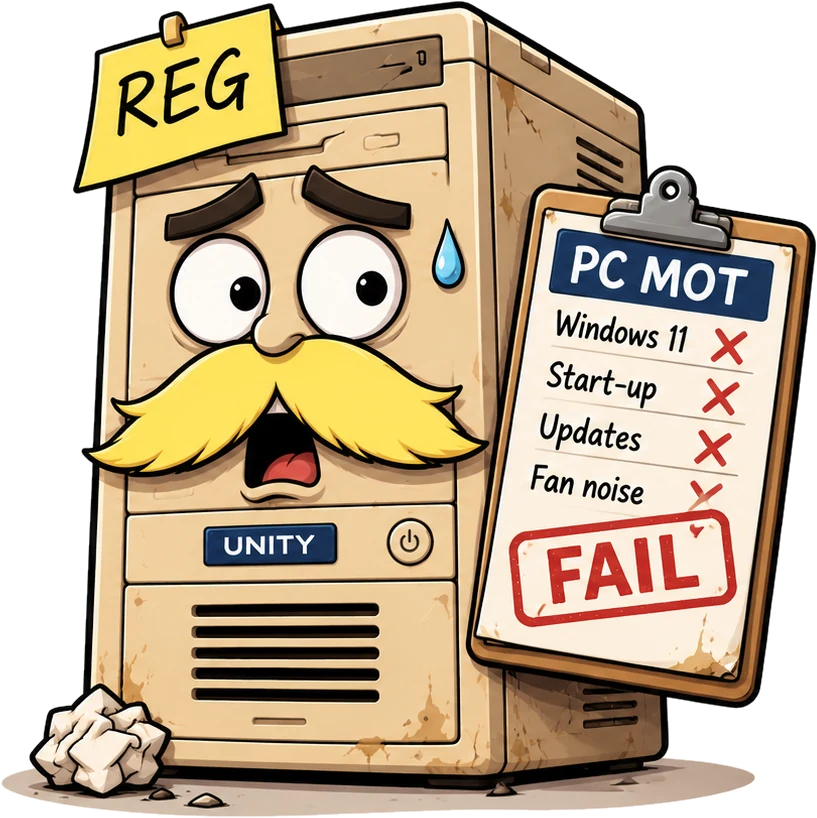
Our free PC MOT does steps 1 to 4 for you. We check every PC in the office and give each one a plain Pass, Advisory or Fail, with what to upgrade, what to replace and what it costs. It’s free, with no obligation.
Book your free PC MOTWhat if you can’t replace your PCs just yet?
We understand that replacing an entire fleet of computers isn’t always possible straight away, particularly for small and medium-sized businesses working within tight budgets.
There are options to help manage the transition.
Microsoft offers an Extended Security Updates (ESU) programme for eligible Windows 10 devices. For commercial organisations, this is a paid, per-device licence that provides critical and important security updates.
A few things are worth knowing before you rely on it:
Devices must be running Windows 10 version 22H2 to be eligible. Anything on an older build needs updating first.
Cover runs for a maximum of three years from the end of support, with Year One beginning in November 2025.
Licences are sold a year at a time, and the price per device doubles each consecutive year. They are also cumulative, so a business joining in Year Two pays for Year One as well.
Support is limited to the ESU licence itself, covering activation, installation and any problems the updates cause. It is not a return to general Windows 10 technical support.
ESU is intended as a temporary measure. It doesn’t bring back standard Windows 10 support or provide new features, and it shouldn’t be treated as a permanent alternative to moving to a supported operating system. Because the cost per device climbs each year while the benefit stays the same, it tends to work best as breathing space for a planned refresh rather than a strategy in itself.
If your business needs additional time, consider which devices genuinely need to remain on Windows 10, confirm eligibility and arrange appropriate security coverage while you plan the next steps.
Your Windows 10 action plan
If your business hasn’t reviewed its computers since support ended, now is a good time to start.
Step 1: Identify your Windows 10 devices
Create an inventory of the computers your business uses, including their age, specifications, operating system and main purpose.
Step 2: Check upgrade compatibility
Use Microsoft’s PC Health Check tool to establish which devices can move to Windows 11.
Step 3: Assess the condition of your hardware
Look beyond the operating system. Consider performance, battery life, reliability, storage capacity and whether each PC can handle the applications your team needs.
Step 4: Prioritise the devices that need attention
Identify computers that cannot be upgraded, have no appropriate security coverage or are already causing problems. These are likely to need the earliest attention.
Step 5: Build a realistic refresh plan
Decide which devices to upgrade, which to replace and whether temporary ESU coverage is appropriate. Make sure important business data is backed up and that employees can continue working during the transition.
Taking these steps can help you make informed purchasing decisions rather than replacing equipment unnecessarily.
Book a free PC MOT
Steps 1 to 4, done for you.
Steps 1 to 4 of that plan are exactly what our free PC MOT covers. One of our engineers comes to you, checks every PC in the office and gives each one a plain result:
You get a written result for every machine, a clear view of what to upgrade, what to replace and what can safely wait, and a cost against each. Where a PC does need replacing, we’ll set up the new one before it arrives and retire the old one securely.
It’s free, it takes about an hour, there’s no obligation, and if a PC passes we’ll tell you it passes.
Or call 0330 119 6666 or email sales@unity.world.
Every business that books is entered into our MOT Prize Draw, to win a one-day Fix Day plus £50 credit. Full terms.
Reg’s Service Book